
Users
Users Overview
Understanding users vs accounts and how to manage customers
Users Overview
The Users section manages the people behind your trading accounts.
Users vs Accounts
This distinction is crucial:
| Concept | What It Is | Identifier | Example |
|---|---|---|---|
| User | A person | Email address | [email protected] |
| Account | A trading account | Login number | #45231 |
One User can have many Accounts.
Example:
- User: [email protected]
- Her accounts:
- #45231 — $50k 2-Step, Phase 1, Active
- #45232 — $50k 2-Step, Phase 2, Active
- #44891 — $25k 1-Step, Live, Active
- #43002 — $100k 2-Step, Phase 1, Breached
Same person, four accounts at different stages.
Finding Users
User Information
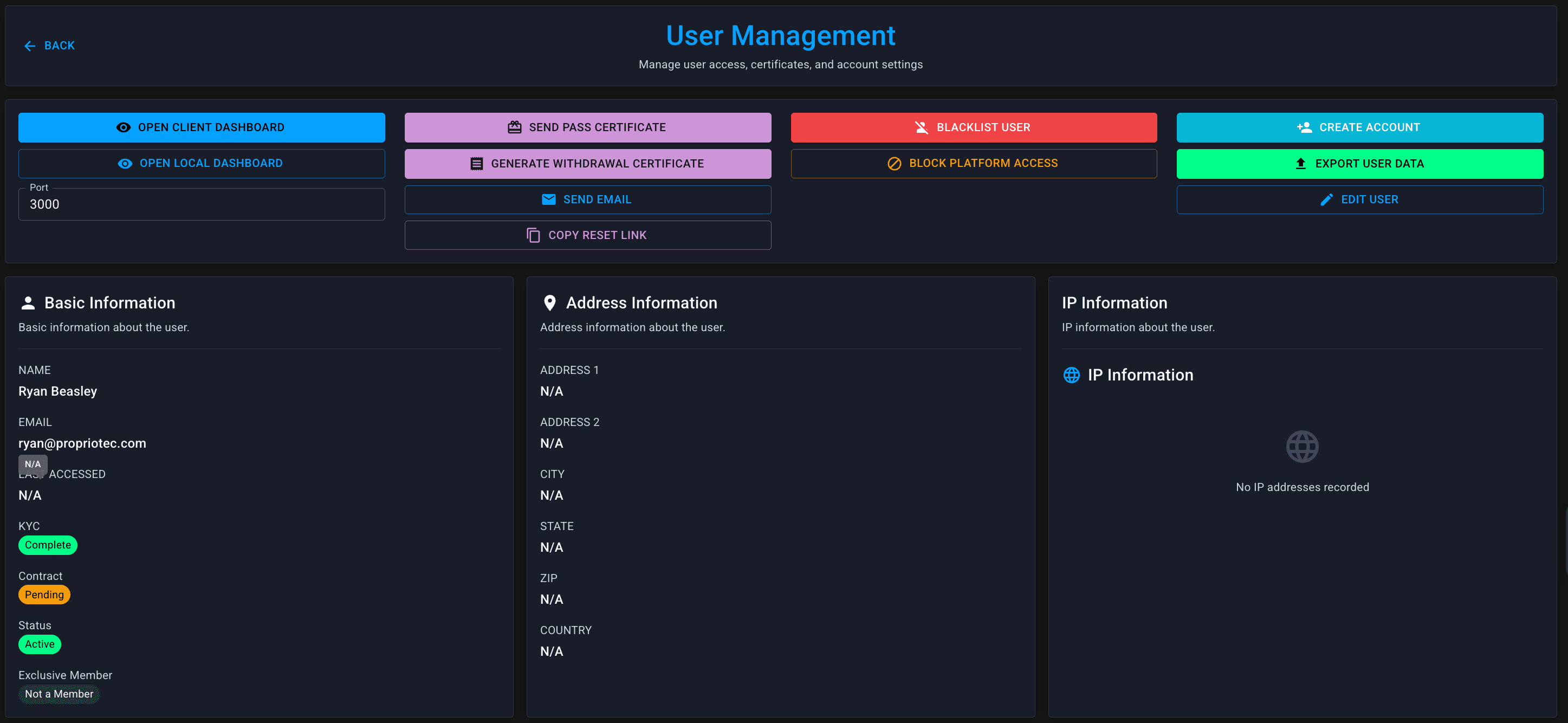
Click into any user to see their full profile:
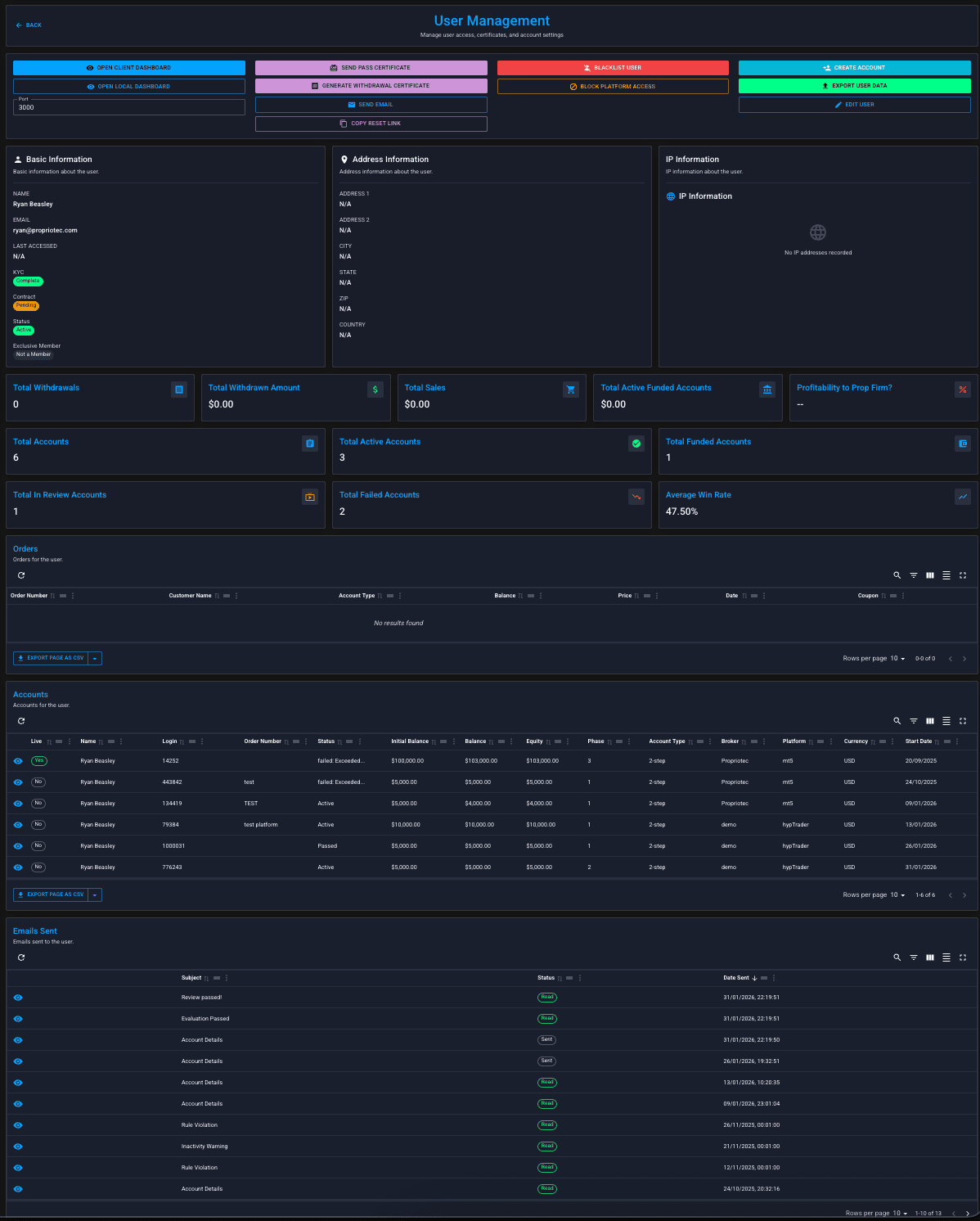
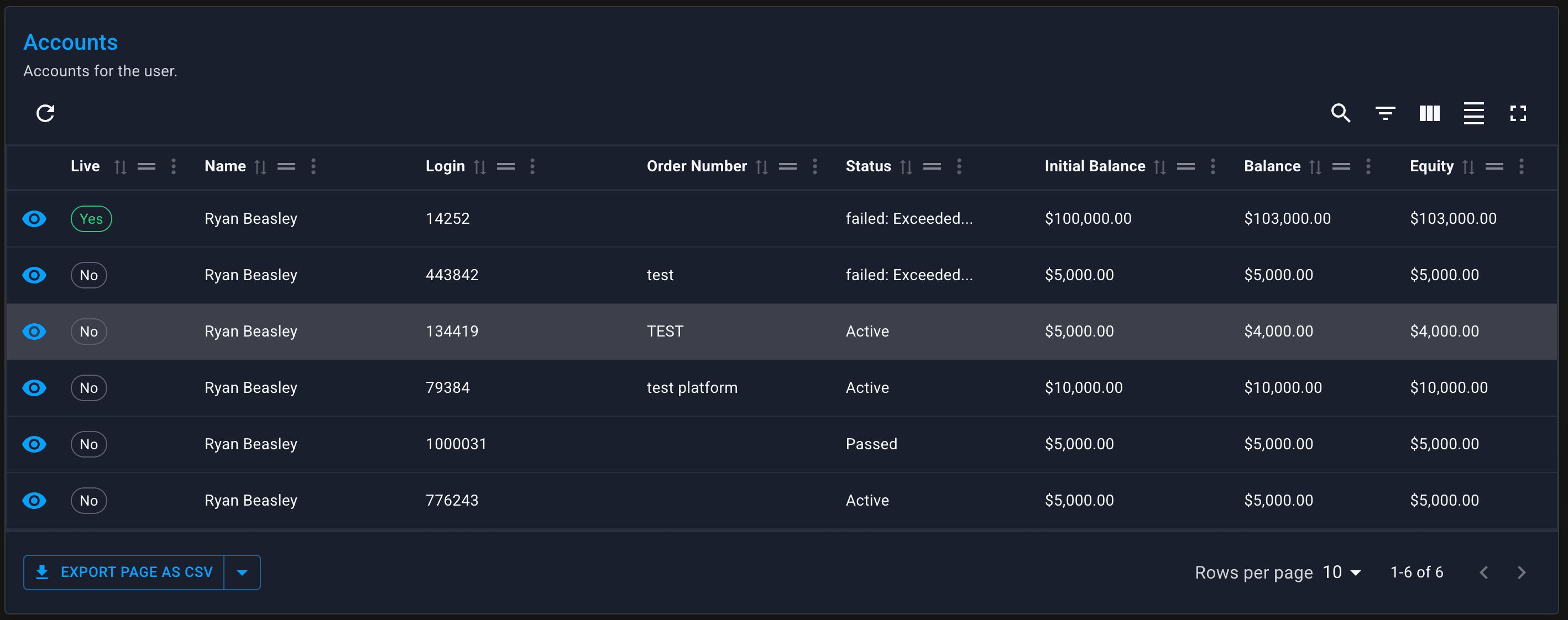
Linked Accounts
All accounts belonging to this user, showing:
- Login number
- Product/Plan name
- Current phase
- Status (Active, Breached, etc.)
Click any account to open its Account View.
Sent Emails
History of every email sent to this user from Propriotec.
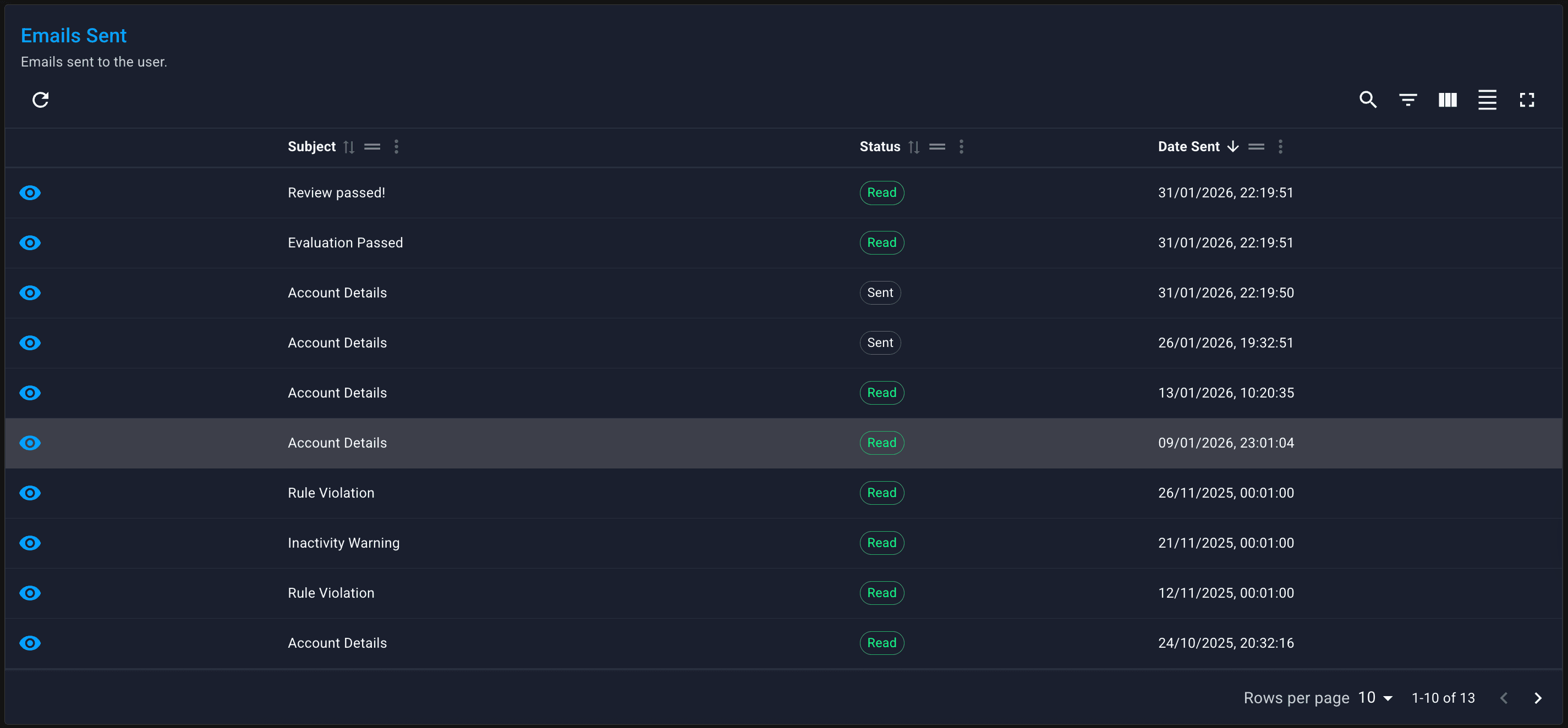
Useful for:
- Checking if notifications were sent
- Troubleshooting "I didn't receive my email" complaints
- Auditing communication history
User Actions
From the User view, you can:
When to Start at User vs Account
Start at User when:
- Customer contacts you about "their account" but doesn't specify which
- You need to see all their activity across multiple challenges
- You're updating their email or contact details
- You're checking what emails they've received
Start at Account when:
- You have a specific login number
- You're investigating a specific trade or breach
- You're processing a task from the Tasks page
- You're taking action on one specific challenge
Most daily workflows start at Account (from the Tasks page). Go to User when you need the bigger picture across all their challenges.