
Accounts
Blacklist
Banning traders from your platform
Blacklist
The Blacklist prevents specific email addresses from making new purchases or logging into the client dashboard.

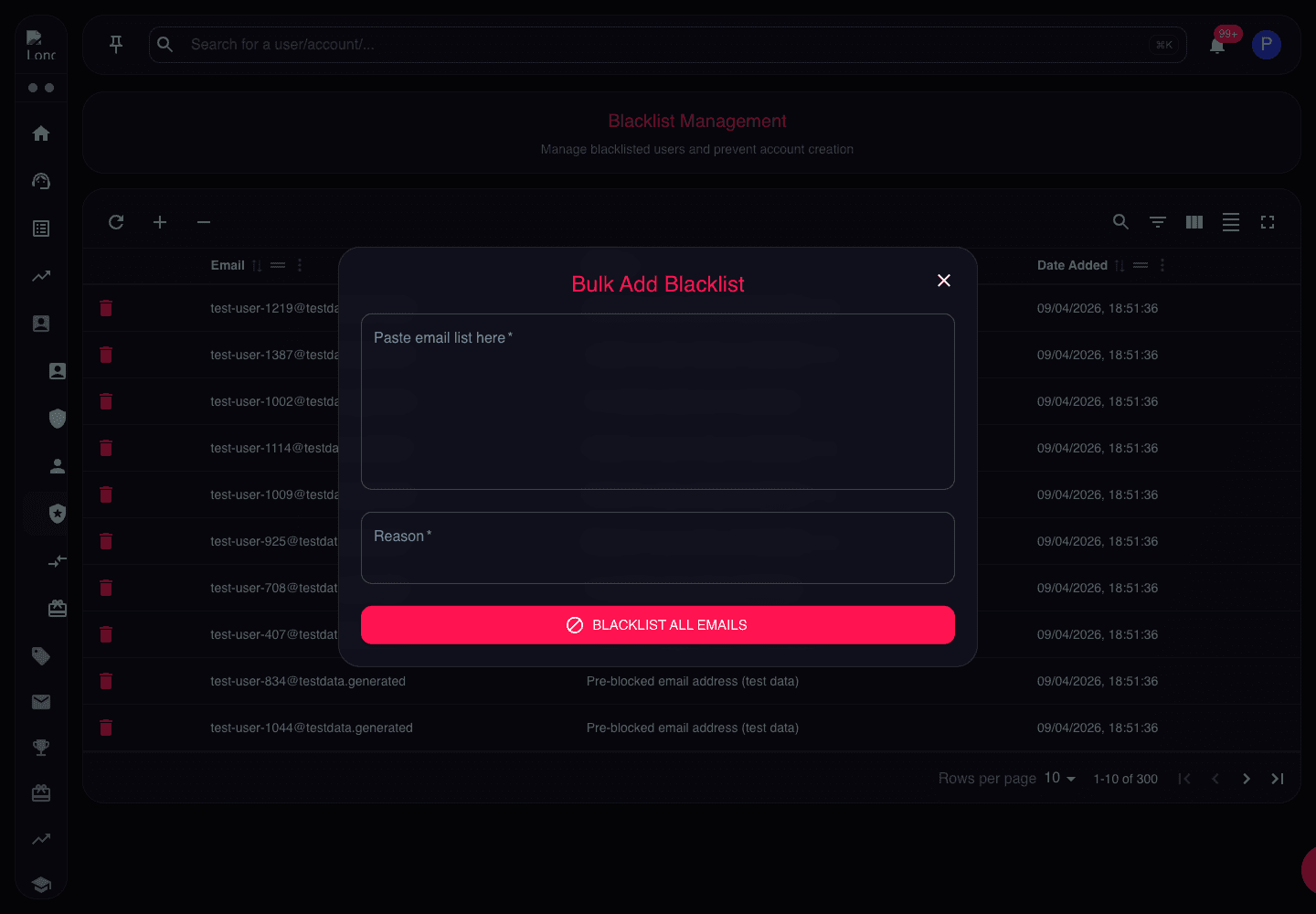
What Blacklisting Does
When you blacklist an email:
| Action | Blocked? |
|---|---|
| New purchases | ✅ Yes |
| Client dashboard login | ✅ Yes |
| Existing trading accounts | ❌ No — they continue |
| Support tickets | Depends on config |
Existing accounts continue trading. Blacklisting doesn't close their current accounts — those are on the broker platform and operate independently. To stop them trading, you need to fail their accounts separately.
When to Use It
How to Blacklist
From the Blacklist Page
- Navigate to Accounts → Blacklist
- Click Add to Blacklist (or equivalent)
- Enter the email address
- Add a reason (internal note)
- Save
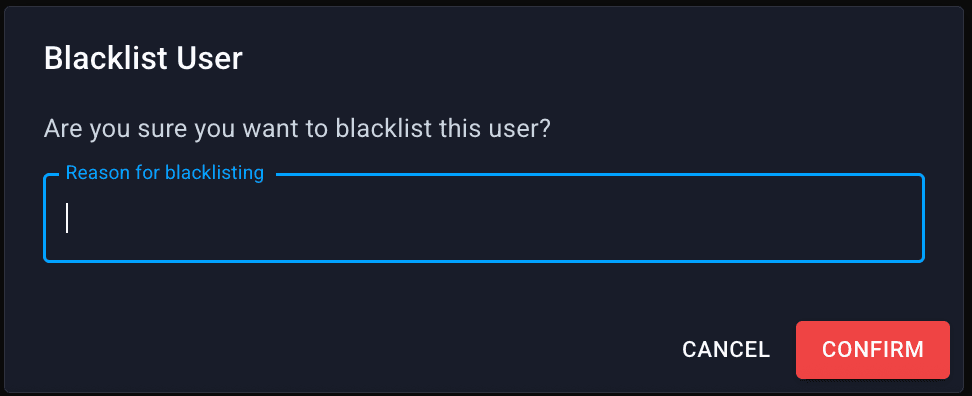
From Account View
Some configurations allow blacklisting directly from an account:
- Open Account View
- Look for Blacklist action in the actions area
- Confirm
Managing the Blacklist
Viewing Blacklisted Emails

The list shows:
- Email — blacklisted address
- Reason — why they were blacklisted
- Date Added — when
- Added By — which admin
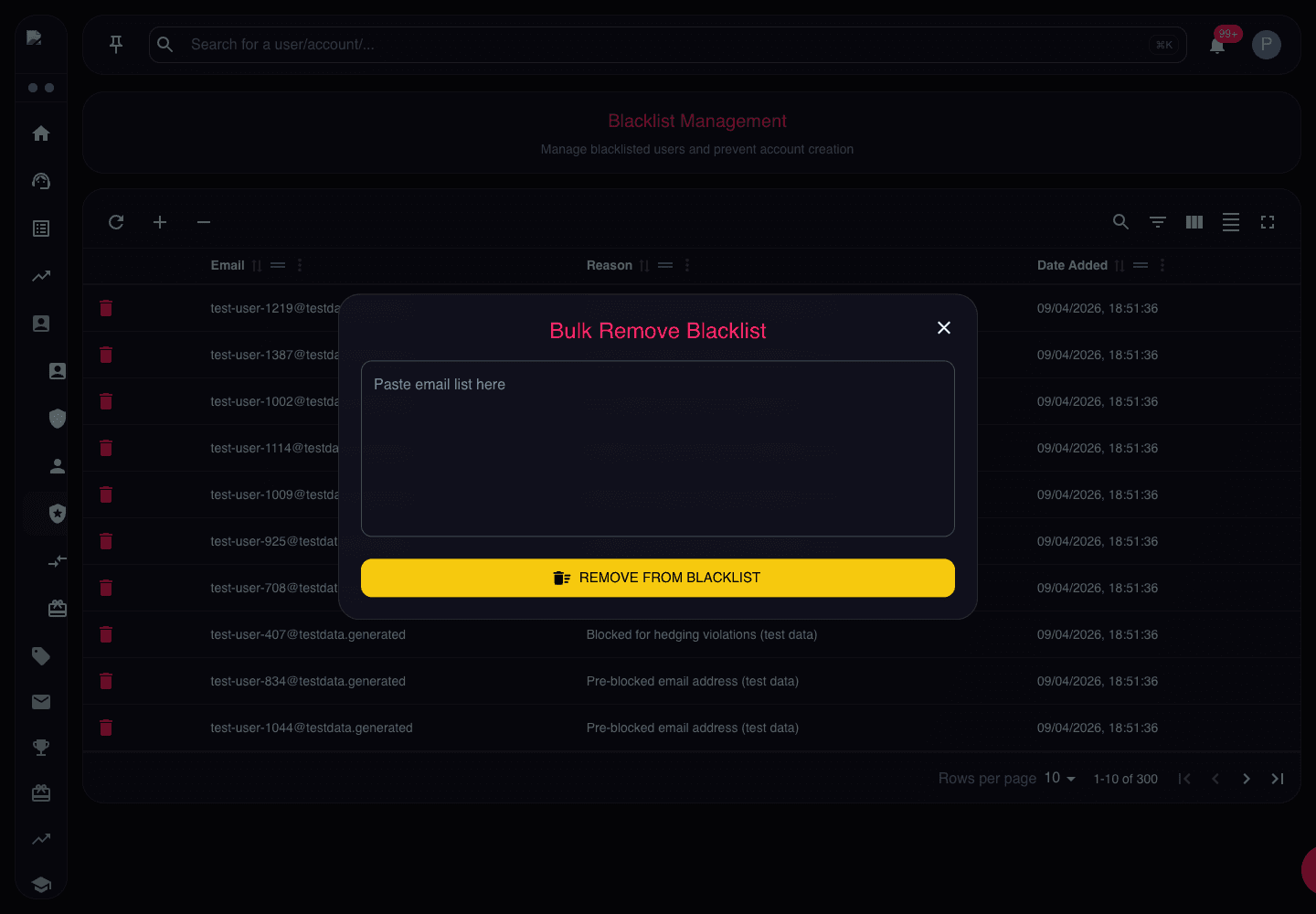
Removing from Blacklist
If you need to un-blacklist someone:
- Find them in the list
- Click Remove (or equivalent)
- Confirm
Use sparingly. If they were blacklisted for fraud, removing them is risky.