
Accounts
Manual Events
Triggering rule violations, resets, and account events manually
Manual Events
Manual Events let you force things to happen on an account — trigger a breach, reset the challenge, or push someone through to the next phase. These are powerful actions, so use them carefully.

When to Use Manual Events
| Situation | Event to Use |
|---|---|
| Confirmed fraud/cheating | Rule Violation |
| Goodwill gesture (let them restart) | Reset Event |
| Need to manually pass someone | Profit Event |
| Need to manually fail someone | Drawdown Event |
Accessing Manual Events
- Open the Account View for the account
- Find the Manual Events button in the actions area
- Click to open the modal
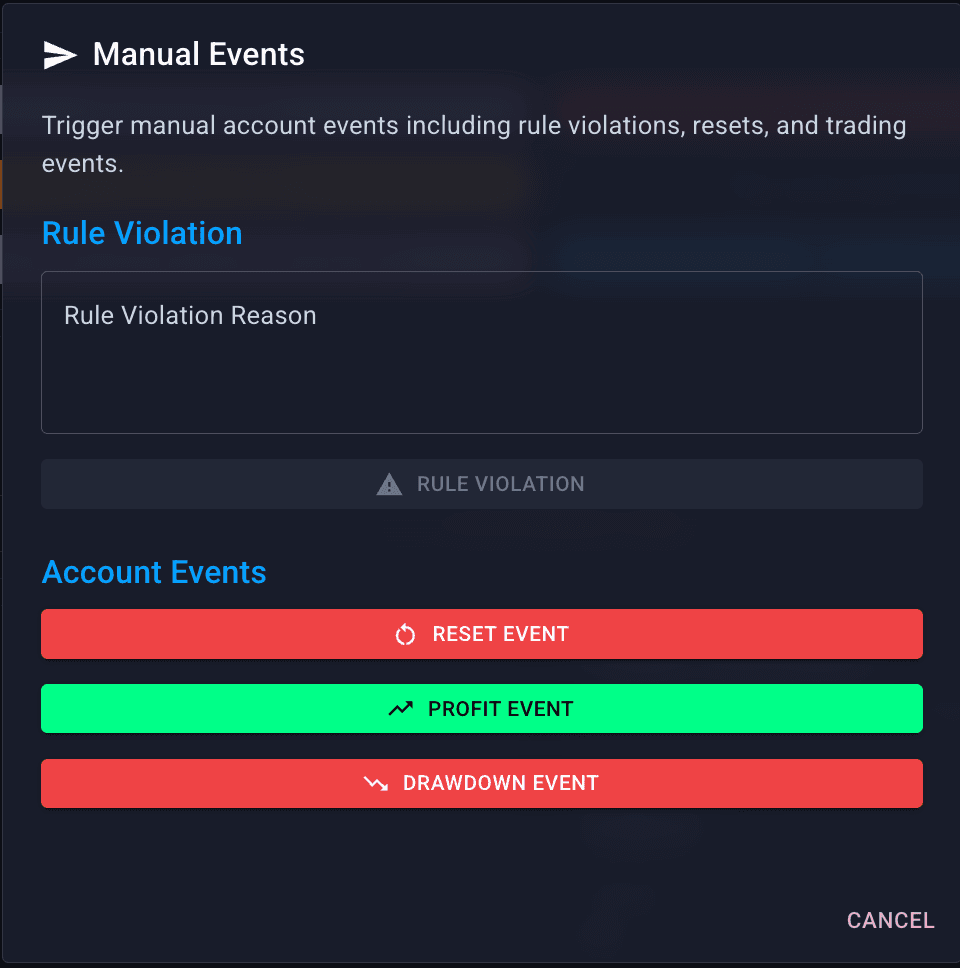
Event Types
Confirmation
All manual events require confirmation before executing. Double-check:
- You're on the right account
- You've selected the right event
- Your reason (if applicable) is correct
These actions cannot be undone (except Reset, which can be done again).
Audit Trail
All manual events are logged:
- Account Logs — shows on the specific account
- Admin Logs — shows who did what across all accounts

If there's ever a dispute, you can see exactly what happened and when.
Common Workflows
Fraud Investigation → Failure
1. Risk Management flags account
2. Use Compare Tool to investigate
3. Confirm fraud
4. Manual Events → Rule Violation
5. Enter clear reason
6. Confirm
7. (Optional) Blacklist the email
Customer Service Reset
1. Customer contacts support about unfair breach
2. Review the situation
3. Decide to give another chance
4. Manual Events → Reset Event
5. Confirm
6. Notify customer
Technical Correction
1. System issue affected tracking
2. Customer should have passed but didn't
3. Verify they genuinely met requirements
4. Manual Events → Profit Event
5. Confirm
6. Document why in support ticket